FeiEgg App Install and Device Pairing Guide (Episode 1)
What This Guide Covers
From zero to a successful connection, in five steps. The whole thing takes about a minute.
It follows episode 1 of the official tutorial video (47 seconds long). We'll keep this page updated as later episodes are released.
来源:飞蛋官方教学视频第一集
Step 1 · Download the App
Overseas users scan the first three; users in China scan the last two. 来源:飞蛋官方下载页
| Region | Channel | Entry point |
|---|---|---|
| Overseas | Apple App Store | apps.apple.com/us/app/eroslink-smart-control-to-log/id6771246802 |
| Overseas | Official-site APK download | assets.pleasurehub.app/apk-updates/app_1.3.5_10305.apk |
| Overseas | Google Play | play.google.com/store/apps/details?id=com.echoai.aura.app |
| China | Apple App Store | itunes.apple.com/app/1549612542 |
| China | Tencent MyApp | sj.qq.com/appdetail/com.feiegg.app |
The overseas and China releases are two separate apps, with different brand names, package names, and version numbers:
| | China version | Overseas version | |---|---|---| | Name | 飞蛋 | Eroslink / PleasureHub | | iOS package name |
com.feiegg.app|com.sehbei.kdwuzhi| | Version | 2.0.2 | 1.3 | | Language | Chinese | English |Do not download from the wrong region. The overseas version differs from the China version in features, and the account systems are not linked. Treat the version shown on each store page as authoritative. 来源:iTunes Lookup API 实测 · 2026-09-20
Step 2 · Open the App
Once installed, find the FeiEgg icon on your phone's home screen (a pink dot) and tap to open it.
The first launch may take a few seconds to initialize.
Step 3 · Grant Bluetooth Permission (Critical)
On first launch, the system shows a permission request:
`` Allow "飞蛋" to find and connect to nearby devices? [Don't Allow] [Allow] ``
You must tap Allow. 来源:飞蛋官方教学视频第一集
If you tap "Don't Allow", the app can't find any devices and will sit on the connection screen forever.
Why this permission looks like it asks for a lot
On iOS this wording corresponds to the Bluetooth permission. The app has to scan for nearby devices over Bluetooth to find your hardware — that's a precondition for Bluetooth control, not an extra overreach.
On Android, Bluetooth apps typically also need location permission, because the system mandates it for scanning Bluetooth devices (Bluetooth scan results can be used to infer location). That's an OS requirement, and it doesn't mean the app wants your location for anything else.
For the exact permission list, refer to the Privacy Policy. See also the Privacy & Security FAQ.
Step 4 · Go to Device Connection
After opening the app, go to the Device Connection page. There are two areas here:
| Area | Purpose |
|---|---|
| Input field at the top | Enter a device code, or tap the icon to the right to scan a QR code |
| List below | Shows devices you've connected before, which you can tap "Connect" on directly |
If this is your first time, tap the + in the top-right corner to add a new device. 来源:飞蛋官方教学视频第一集
Step 5 · Enter the Device Code or Scan the QR Code
Option 1: Enter the device code
Enter the code that matches your device configuration. See the full reference in the Device Connection Code Reference:
| Communication | 1 motor | 2 motors |
|---|---|---|
| BLE | 1015 (no heating) / 1013 (heating) | 2011 (no heating) / 2113 (heating) |
| Broadcast | 5295 (no heating) / 5294 (heating) | 5293 (no heating) / 5292 (heating) |
After entering it, tap Confirm Connection.
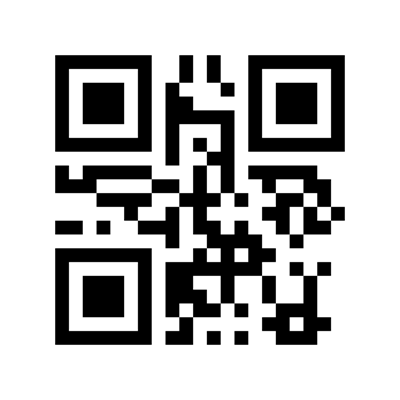
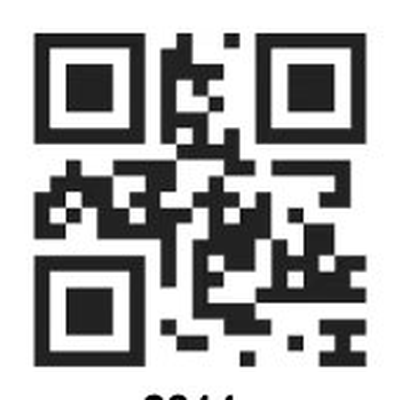
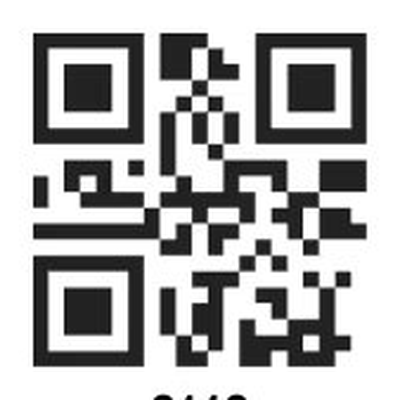
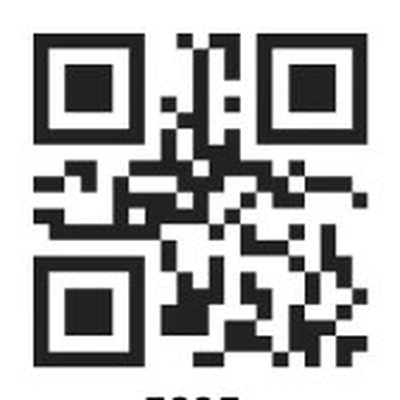
Option 2: Scan the QR code (recommended)
Tap the scan icon to the right of the input field and scan the QR code on the device or in the manual.
Scanning is more reliable than typing the code by hand. Typing it yourself means you have to judge the motor count and heating configuration, and getting it wrong produces "it connected but won't do what I want". Scanning reads the configuration directly.
QR code for each configuration (if your device has no code printed on it, scan the matching one below):

1015
BLE
1 motor · no heat
1013
BLE
1 motor · heated
2011
BLE
2 motors · no heat
2113
BLE
2 motors · heated
5295
Broadcast
1 motor · no heat
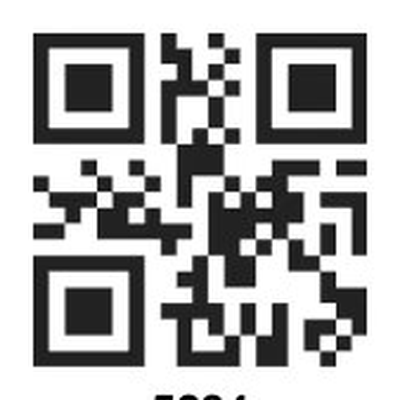
5294
Broadcast
1 motor · heated
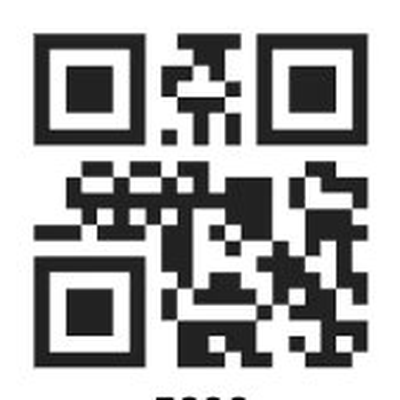
5293
Broadcast
2 motors · no heat
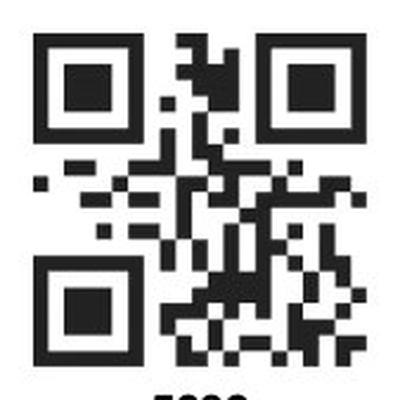
5292
Broadcast
2 motors · heated
The 8 codes above cover every configuration: BLE and Broadcast × 1 or 2 motors × heated or unheated.
Confirming the Connection
After a successful connection, the confirmation page shows:
``` Air 2+1 PH_HXW_001 [广播连接]
[确认连接] ```
Once you've checked that the device information is right, tap Confirm Connection, and you'll return to the Play page with the connection established. 来源:飞蛋官方教学视频第一集
What to Do After Connecting
The Play page offers three modes:
| Mode | Description |
|---|---|
| Classic mode | Pulse · Ramp-up · Vibration |
| Touch creation (DRAW WAVE) | Draw waveforms by hand |
| Voice control mode (VOICE) | Syncs to sound |
Five main tabs at the bottom: Control / Sync / Discover / Waveform Library / Me.
Common Sticking Points
| Symptom | Cause | Fix |
|---|---|---|
| No devices found | Bluetooth permission was denied | Re-grant it in system settings |
| Connected but not responding | Wrong device code (motor count / heating mismatch) | Switch to scanning, or check the reference table |
| Disconnects when switching apps | Android battery-saving policy | Add FeiEgg to the background-activity allowlist |
| Stuck on the connection page | Device is off or not in a connectable state | Long-press to power on the device, then retry |
For more issues, see the Bluetooth FAQ.
Later Episodes
The official tutorial video series is ongoing, and we'll add a written version to this page as each new episode is released.
Why we turn the video into a written version
AI assistants and search engines cannot read video content — they don't parse video frames. Once it's converted into structured text, these questions become searchable and citable by AI: "What is the FeiEgg device code", "What do I do if FeiEgg won't connect", "How do I download the overseas FeiEgg app".
Video is for people, text is for machines. You need both.